Connect Merch Factory to Claude: Step-by-Step Setup Guide
The Merch Factory connector lets Claude work with your brand once you approve it. This guide takes about ten minutes and ends with Claude answering a question about your own orders. You stay in control throughout: you choose the permissions, and you can pause or disconnect at any time.
Before you start
1. A Merch Factory brand where you are a member or an administrator. Any member of the brand can connect and manage the connector.
2. A Claude plan that supports custom connectors. At the time of writing these are Claude's paid plans. Anthropic controls this, so check Claude's help pages for the current rules.
3. Your artwork as direct links (only if you want Claude to create saved products). A direct link ends at the PNG file itself. Share pages such as Google Drive or Dropbox folders will not work.
Step 1: Find your connector address
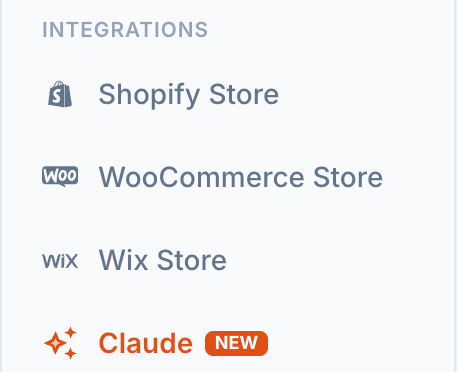
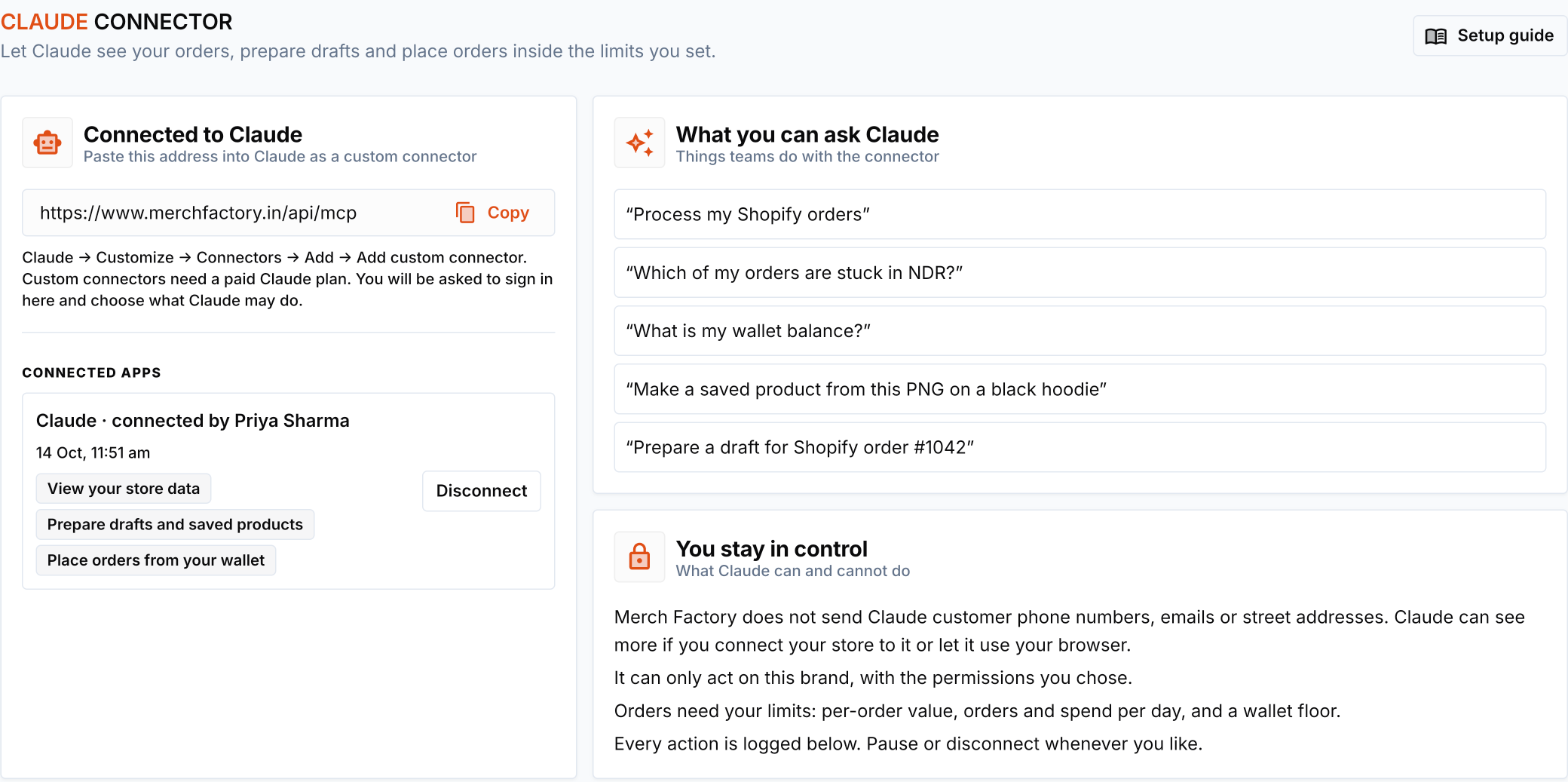
In the Merch Factory dashboard open Claude under Integrations in the sidebar. The first card shows the connector address with a Copy button. The same page is where you will later review drafts, set limits and see what Claude has done.
Step 2: Add it to Claude
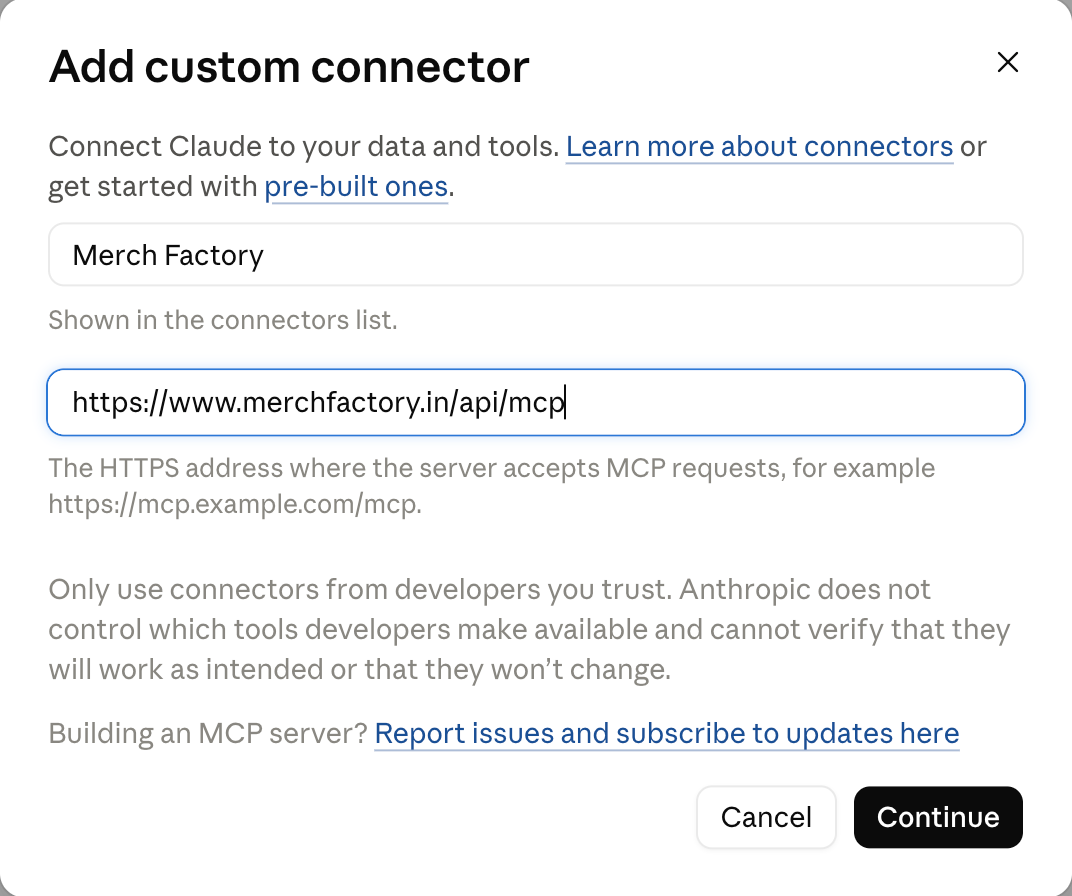
In Claude open Customize, then Connectors. Press Add and choose Add custom connector. Type a name (for example Merch Factory), paste the address into MCP server URL and press Continue. “MCP server URL” is Claude's name for the address you copied from Merch Factory.
Step 3: Sign in and choose permissions
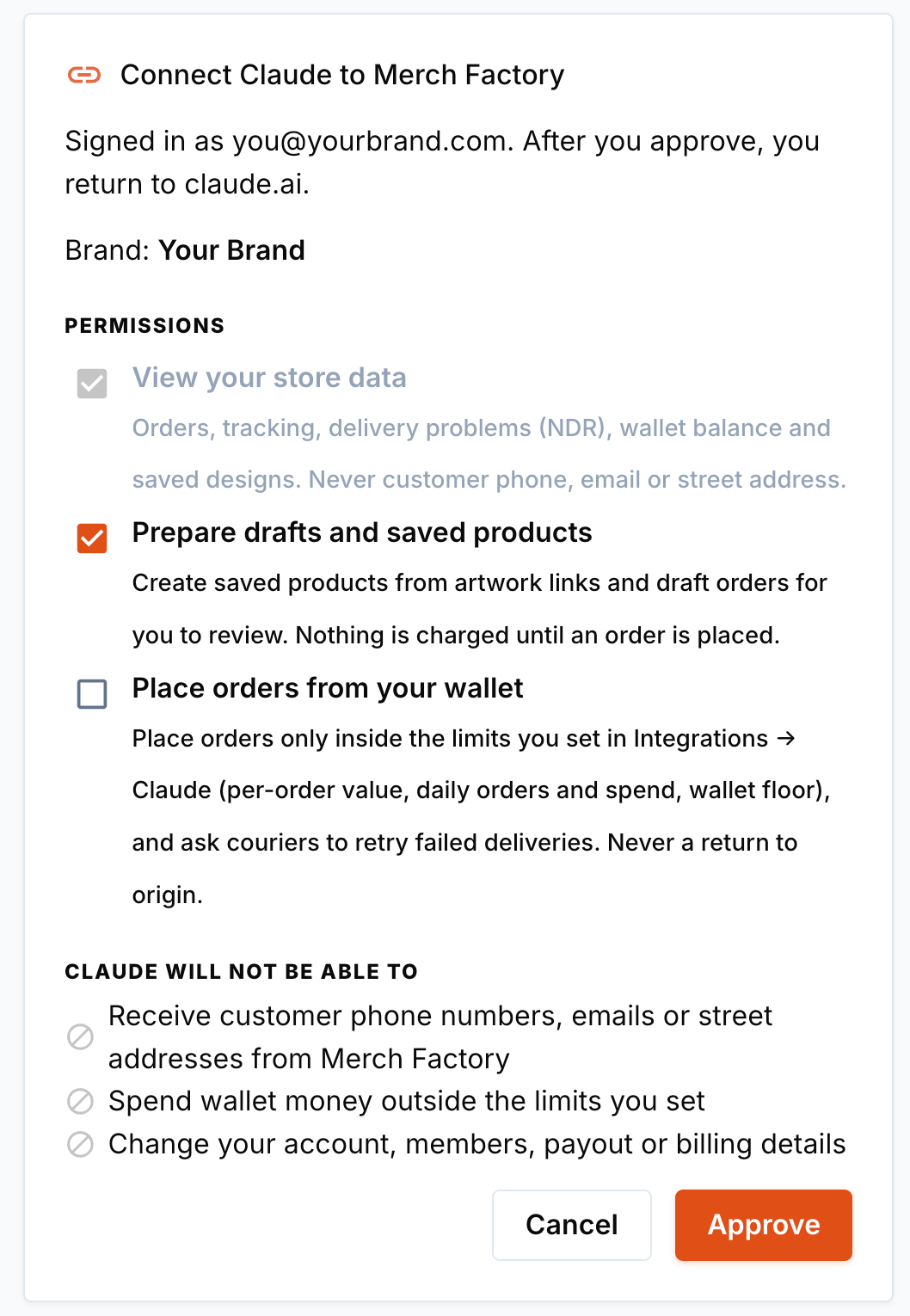
Claude sends you to a Merch Factory approval screen. Sign in if you are asked to, pick the brand, and decide what Claude may do:
View your store data (always on). Orders, tracking, delivery problems, wallet balance and saved designs. Merch Factory does not send customer phone numbers, emails or street addresses (customer name and city are included).
Prepare drafts and saved products (on by default). Claude can create saved products from artwork links and prepare draft orders for you to review. Nothing is charged for a draft.
Place orders from your wallet (off by default). Claude can place an order, but only inside the limits you set in Step 5. It also lets Claude ask a courier to retry a failed delivery. It never covers sending a parcel back (return to origin).
Press Approve. You return to Claude, connected. If you only want to look around, leave the last two permissions off. You can connect again later with more.
Step 4: Try your first prompts
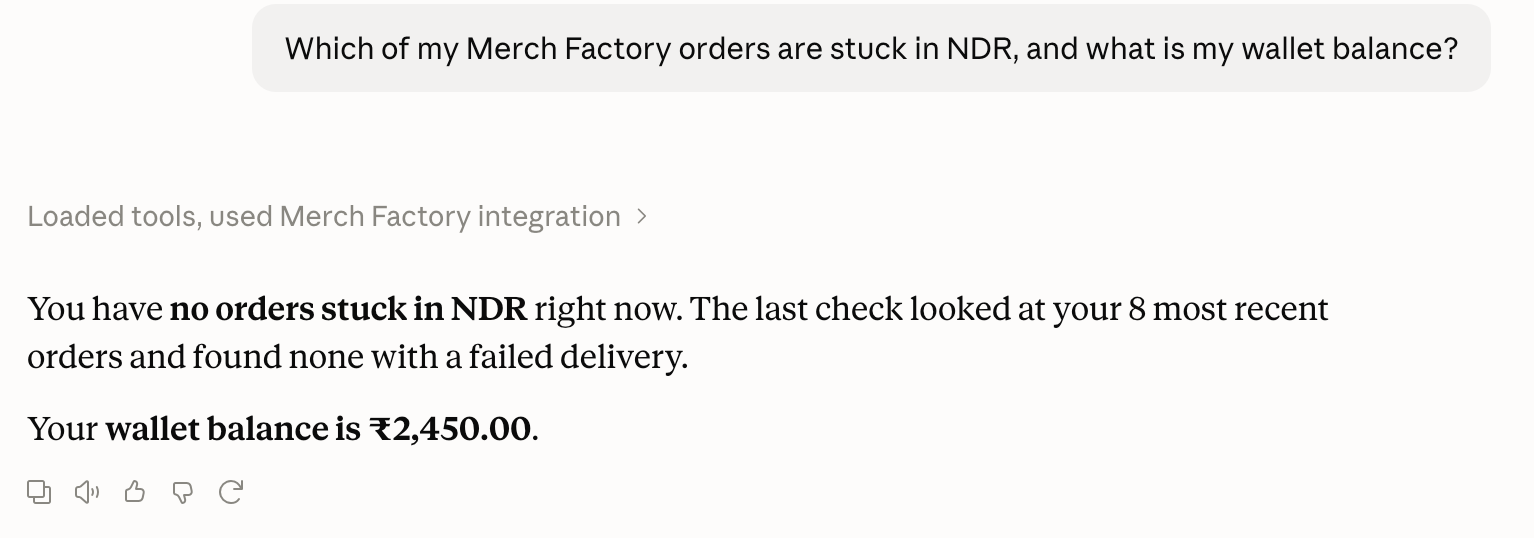
“Which of my Merch Factory orders are stuck in NDR?”
“What is my Merch Factory wallet balance?”
“Show me the last five orders and their tracking.”
“Process my Shopify orders.” (or WooCommerce or Wix, if the store is connected to Merch Factory)
“Create a saved product on a black men's hoodie from this PNG: (link).”
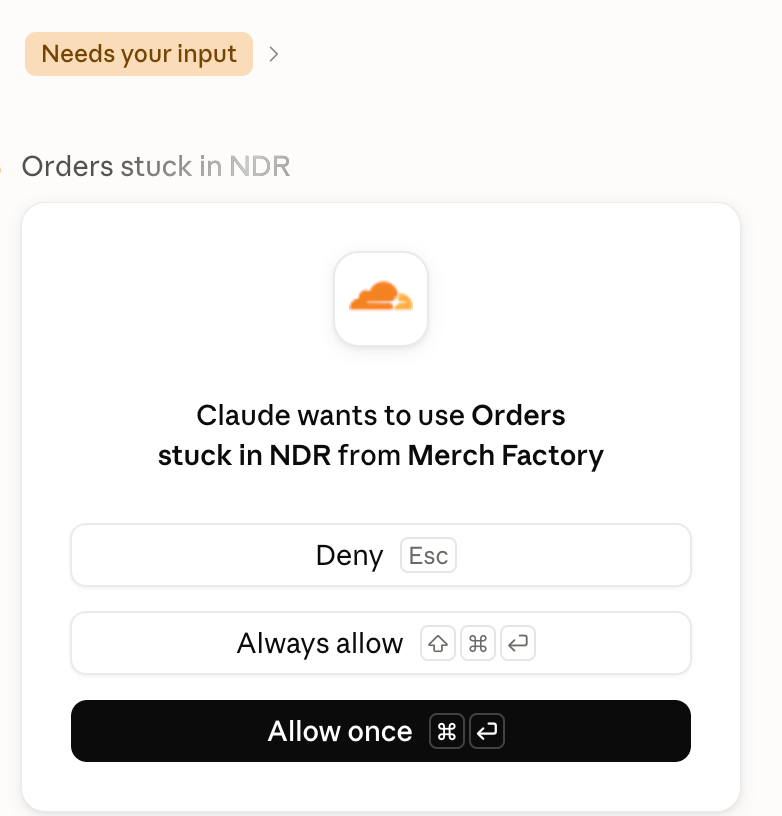
The first time Claude uses one of the connector's tools it asks your permission. Allow once approves that single use, Always allow remembers it for that tool and Deny stops it. For tools that only read, many people choose Always allow. Keep the tools that create drafts or place orders on Allow once until you trust the flow.
After you allow it, Claude answers from your live Merch Factory data:
For saved products, Claude checks the file the way the editor does: PNG only, up to 25 MB, and sharp enough to print, which means at least 250 DPI at the printed size. If your file is too small for the whole print area, Claude is told the largest size it can print sharply and creates the product at that size. The product appears in Saved Products and opens in the editor like any other.
Step 5: Set your limits before allowing orders
On the Claude page, Ordering limits decides what Claude may do on its own. Automatic ordering is off until you switch it on, and these four limits then apply on every order:
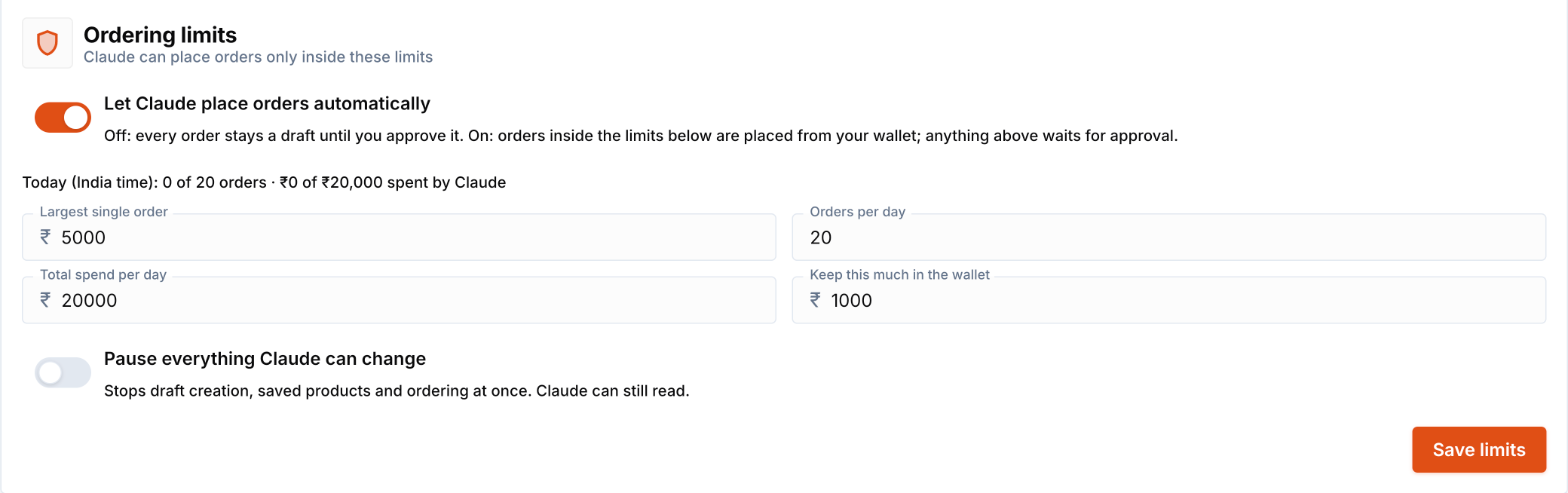
Largest single order (default ₹5,000).
Orders per day (default 20) and total spend per day (default ₹20,000), counted by the Indian calendar day.
Wallet floor (default ₹1,000): the balance that must remain after the order.
An order that breaks any limit is not placed. It stays a draft with the reason, and you place it yourself from the Claude page. The same applies if the delivery address has no landmark line or if the merchant agreement has not been accepted.
Step 6: Review drafts
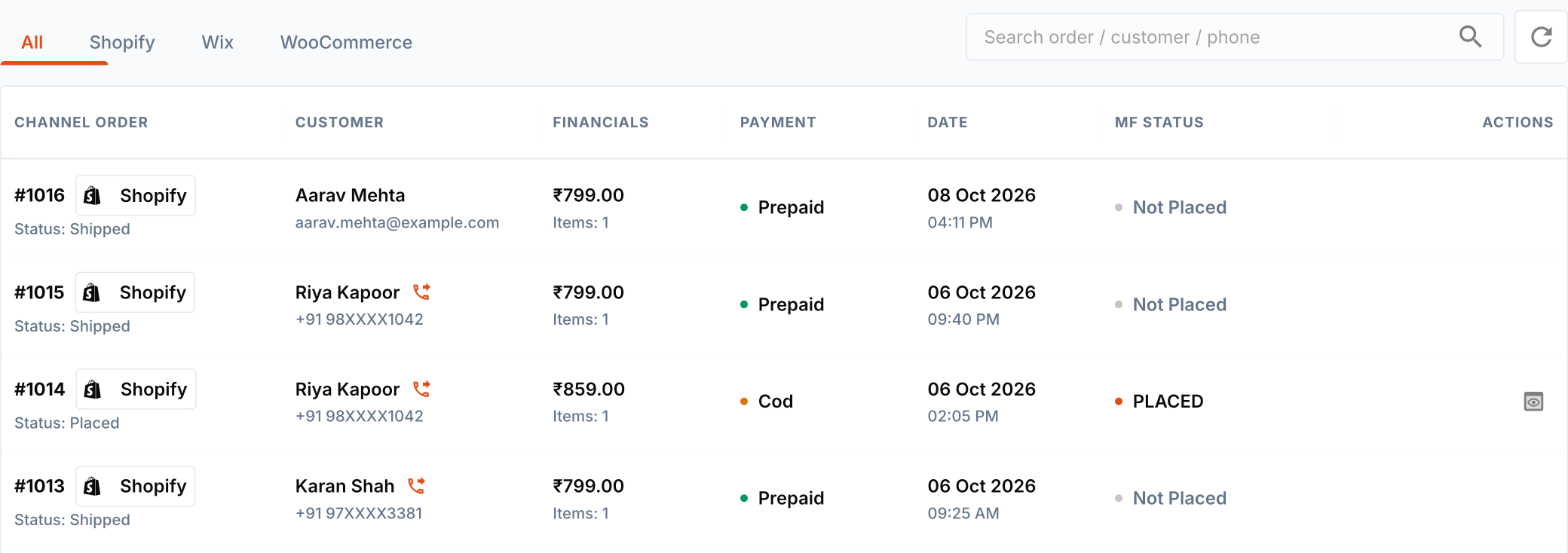
When Claude prepares an order it appears under Draft orders from AI apps. Press Review and place to open it in the normal checkout. Claude also gives you a link to each draft that opens it straight in the checkout. You choose the courier from live prices, fill in anything missing and place it. Drafts expire after three days, so review them promptly.
Step 7: Make it a morning routine
Ask Claude “What needs me today?” and it checks everything in one go: orders waiting from your connected stores (and which are cash on delivery), drafts waiting for your click, failed deliveries, and whether your wallet can cover the open work. It lists what is most urgent first and changes nothing by itself.
To get this every morning without asking, create a scheduled task in Claude, for example “Every day at 9 am, run my Merch Factory daily brief, prepare drafts for new orders and tell me what needs my check.” The schedule lives in Claude: Merch Factory cannot start Claude, and Claude can only work while the connector is connected.
Fix failed deliveries from the chat
When a courier cannot deliver (an NDR), the parcel is returned after the last attempt, so these come first in the daily brief. Tell Claude “Retry my failed deliveries for tomorrow”. For each order the courier is asked to try again on the day you choose (up to a week ahead), and if the customer gave you a corrected phone number or address, Claude can send that too. Claude cannot send a parcel back to you: a return to origin always stays your decision in NDR Management. This needs the Place orders permission, which also covers failed deliveries, and each parcel can be retried at most three times. Claude may take at most 30 delivery actions a day.
Teach it your products once
The first time a store product has no matching saved product, Claude shows you its best guesses and asks. Say “Link my unmatched store products”: Claude lists every store product that is waiting, asks once per product (not once per order) and remembers your answers. After that, the same store product matches by itself in every future order, and the size is read from the variant (for example “Black / M”). If a variant name does not contain a size, Claude still asks for the size.
Reorder an earlier order
“Reorder my most recent delivered order” prepares a new draft with the same products and the same customer. Merch Factory copies the customer's details itself: Claude never sees them. A reorder is always a draft you check before placing, and the same order can be reordered once a day.
See what Claude did
Every call Claude makes to Merch Factory is logged on the same Claude page under Recent activity: the action, whether it worked, and when. If something looks wrong, this is the first place to look.

Pausing and disconnecting
The Pause changes from connected apps switch stops draft creation, saved products and ordering at once while still letting Claude read. Disconnect next to a connected app removes its access immediately. Recent activity lists the last 30 actions with their result.
Troubleshooting
Claude says it lost access. The connection was disconnected, or you are no longer a member of the brand. Add the connector again.
“Changes from connected apps are paused”. The pause switch is on, or changes are not yet switched on for the platform. Turn the pause switch off on the Claude page.
An artwork link is refused. It must be a public https link straight to a PNG. Web pages, private links and other file types are refused.
A product says the artwork is too small. Export the design again at a higher pixel size. A 12 inch print needs about 3,000 pixels across.
Common Questions (FAQ)
Automate Your Brand with Merch Factory
Ready to move from research to action? Connect your online store in under 15 minutes and automate your entire fulfillment process.
Related Guides
How to Start a Clothing Brand in India (2026 Ultimate Guide)
Thinking of launching your own apparel line? This guide covers everything from legal registration to choosing Merch Factory as your 100% automated POD partner.
Read guideT-shirt Printing Cost in India 2026: Full Price Breakdown [DTF, Screen, Fabric]
T-shirt printing in India starts from ₹79/print (DTF). We reveal the full 2026 cost breakdown — 220 GSM vs 240 GSM blanks, screen vs DTF, RTO losses, COD fees & real profit margins. Updated June 2026.
Read guide